
Overview
This guide walks you through setting up and using the Trigno Link and its features in the Trigno Discover software. Trigno Link is a compact, portable, USB-powered device that connects third-party Compatible Devices with Delsys Trigno Avanti-Style Sensors, creating a synchronized, real-time data stream in Trigno Discover. It supports Bluetooth Low Energy (BLE v4.2) and ANT+, enabling seamless integration of diverse physiological signals.
Trigno Link can connect with up to six third-party compatible devices simultaneously. For a complete list of compatible devices, refer to the compatibility table below.
Designed for biomechanics, sports science, clinical research, and exercise physiology, Trigno Link works with Trigno Discover software, allowing users to combine other physiological data with EMG. For a visual walkthrough, please refer to the Trigno Link Getting Started video.
Information
This article refers to Trigno Discover version 2.0.1. Please note that the user interface may vary depending on the version you have installed. You can find your current version of Trigno Discover in the top left corner of the application window.
Trigno Link Getting Started Video
System Requirements
Material/Tool | Description |
|---|---|
Software | Trigno Discover 1.6.2 + |
Hardware: System | Trigno Centro; Trigno Lite; Trigno Research Base Station |
Firmware: System | Trigno Centro: 06-05-00 | 04-01 + Trigno Lite: 02-02 + Trigno Research Base Station: Digital: 2919 | 1506 | 0806 | 2008 | 0000 Analog: 2919| 1506 | 0806 | 2008| 0901 Trigno Link: 02-18 |
Hardware: Sensors | Avanti-Style Sensors |
Firmware: Sensors | Avanti-Style Sensor: 40-49 Maize Sensor: 60-29 |
Accessories | Two USB 2.0 or higher ports |
Operating System | Windows 11 |
PC Specifications |
|
Compatible Devices
Device Name | BLE or ANT+ |
|---|---|
Jamar Hand Dynamometer | BLE |
VO2 Master Analyzer | BLE |
Moxy Muscle Oxygen Monitor | BLE and ANT+ |
H10 Polar Heart Rate Monitor | BLE and ANT+ |
Wahoo Kickr Bike Cycle Ergometer | ANT+ |
Wahoo Cadence and Speed Sensors | ANT+ |
BLE vs ANT+
Bluetooth Low Energy (BLE):
Requires a two-way connection via software.
Supports up to 6 devices simultaneously.
Automatically manages frequencies to prevent interference.
ANT+:
Common in fitness devices.
Devices broadcast data automatically; no formal connection needed.
Supports up to 6 compatible devices simultaneously.
Ideal for fitness and performance monitoring.
Step-by-Step Instructions
Step 1: Software & Hardware Setup
Download, install, and activate Trigno Discover from the Delsys Website. [See Trigno Discover: License Management & Installation]
Connect the System to the PC.
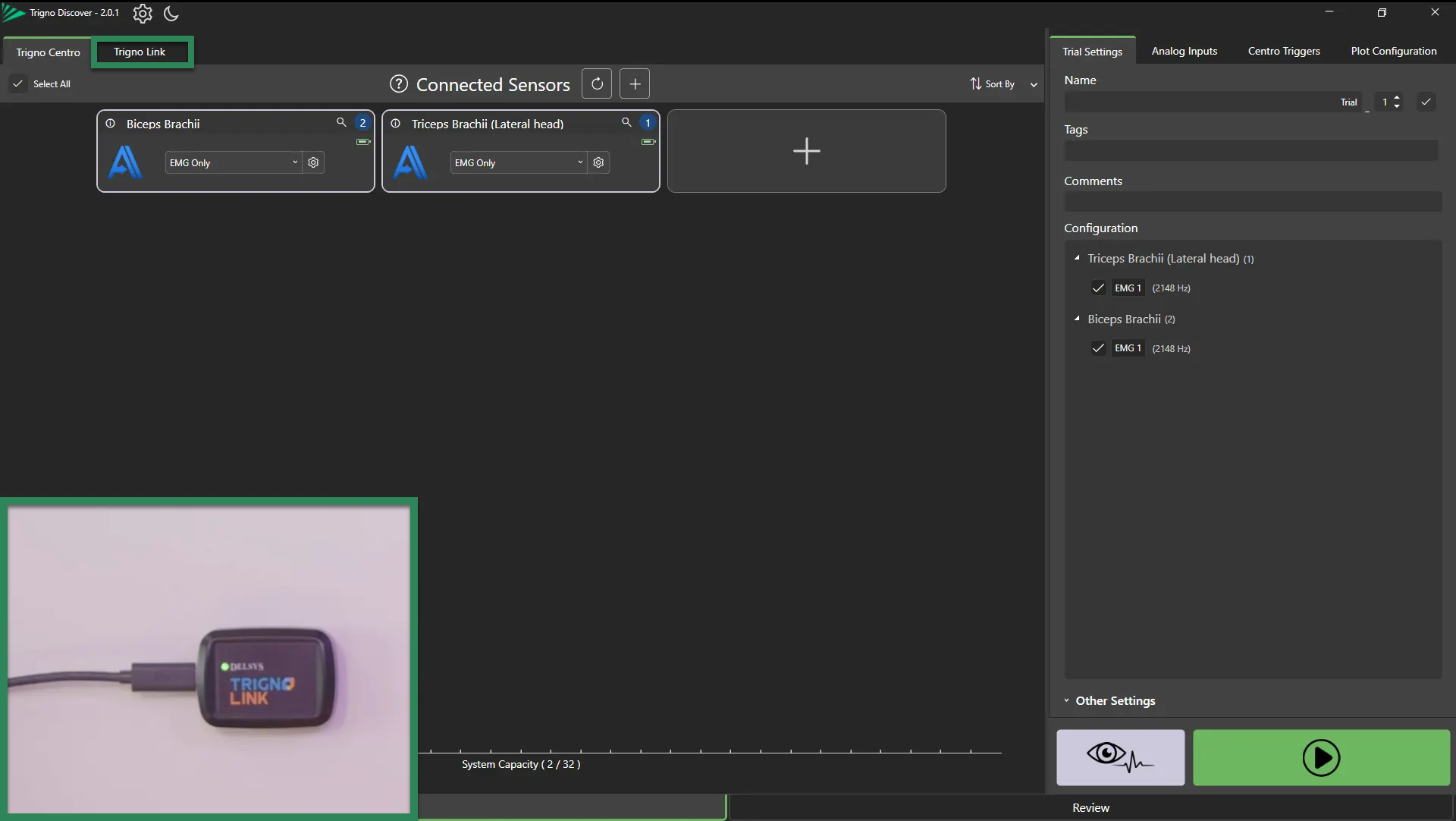
Connect Trigno Link using the supplied USB cable; the LED should turn orange.
Open Trigno Discover; Trigno Link’s LED turns green, and the Trigno Link tab appears.
Step 2: Pair Sensors & Devices
Pair third-party Compatible Devices in the Trigno Link tab:
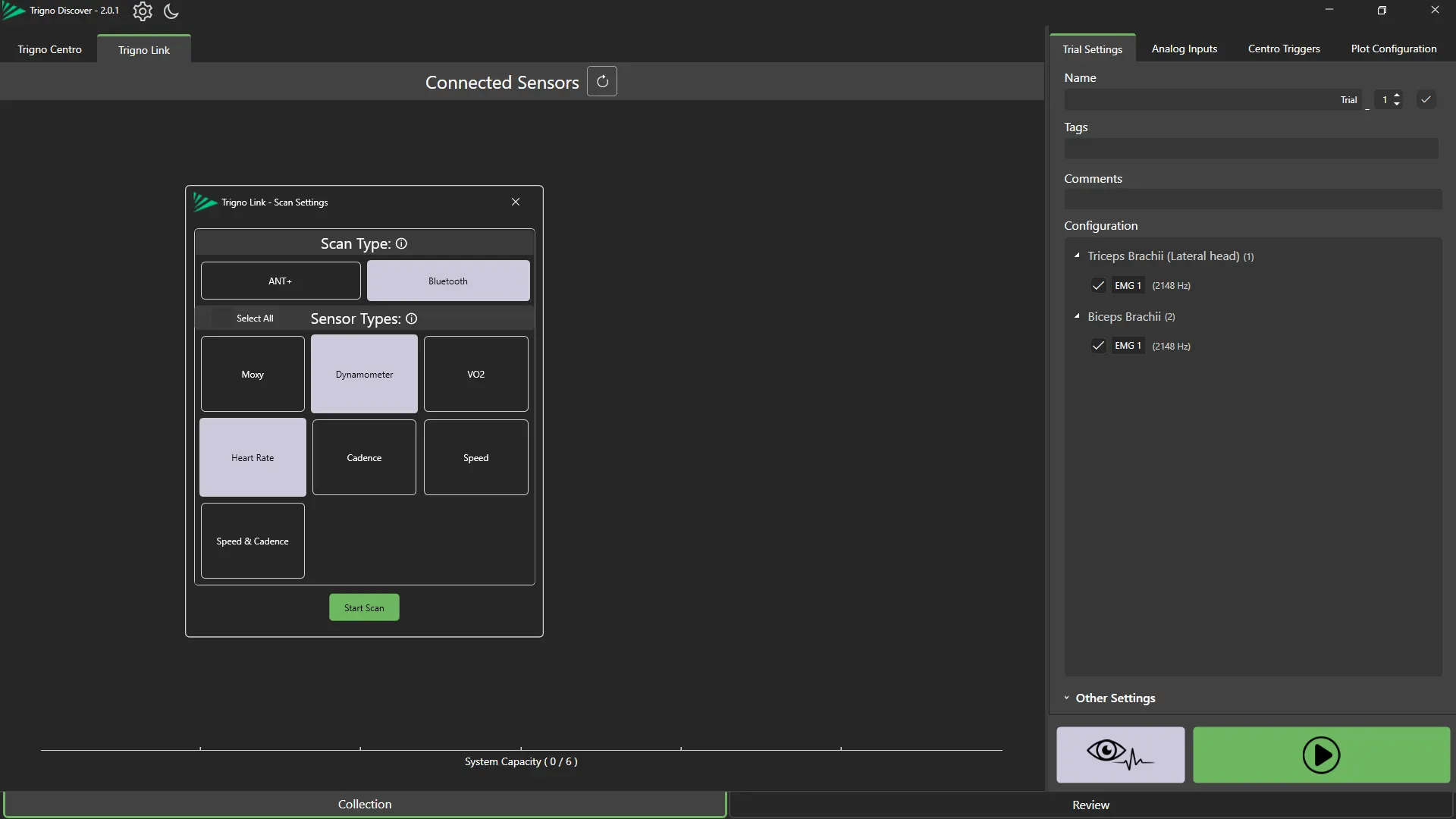
Click “Scan for Sensors”, select BLE or ANT+, choose the sensor types you require and click “Start Scan”.
ANT+ Pairing: LED flashes orange
BLE Pairing: LED flashes magenta
Important
Avanti-Style Sensors must be connected for operation. At least one is required.
Information
Trigno Link operates in either BLE or ANT+ mode, not both simultaneously.
Step 3: Configure Devices
Adjust Avanti-Style Sensors Mode, Sampling Rates, and Sensor Name & Channel Name. [see Trigno Discover: System Configuration]
Configure your compatible devices as needed. Compatible devices can be configured in the Trigno Link tab.
Information
Some compatible devices do not allow configurations of their settings.
Step 4: Start Data Collection
Click Start Collection to record data from all connected sensors and devices.
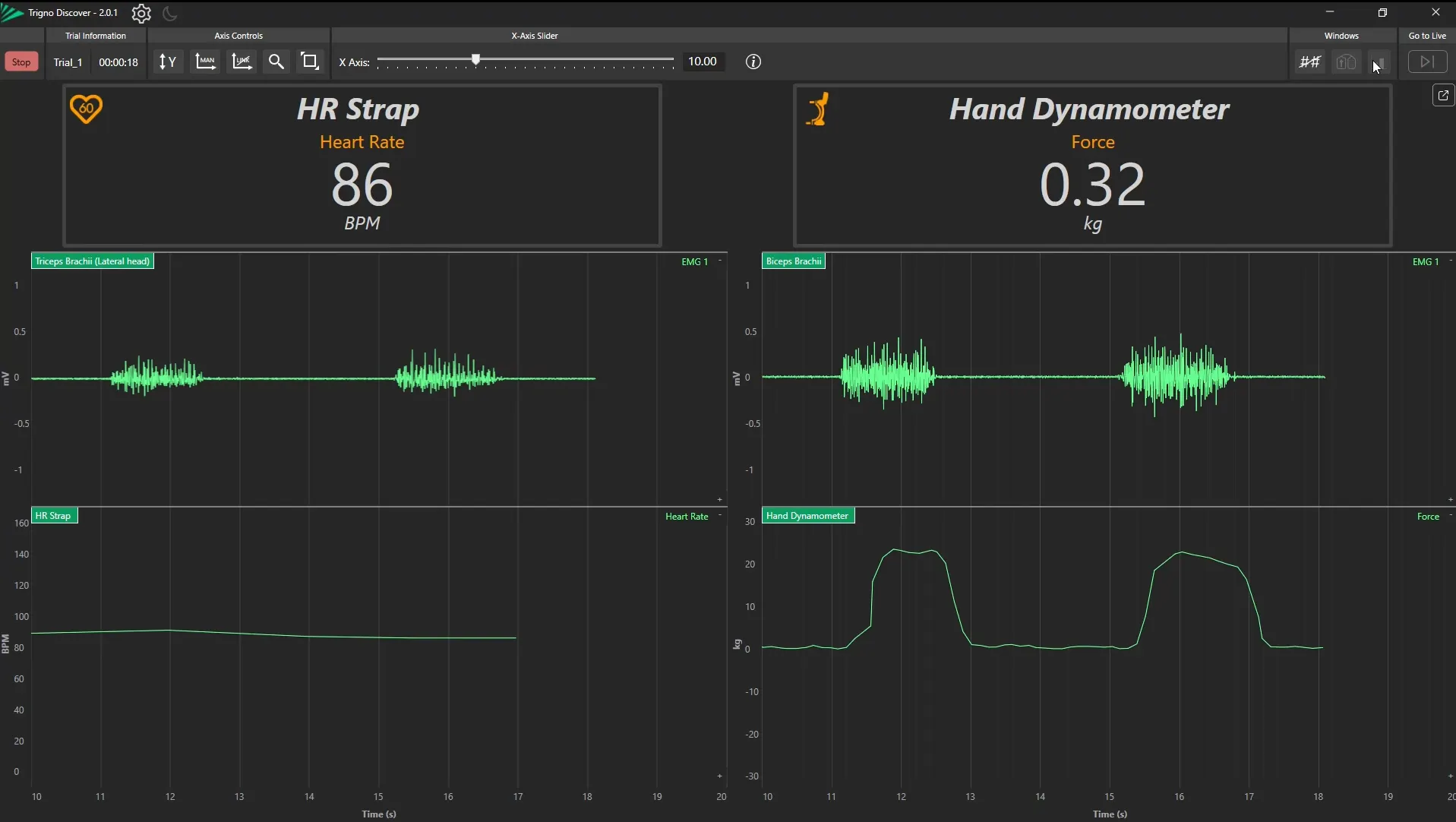
Please refer to the following page for more specific information on how to use each compatible device to collect data:
Troubleshooting
Issue | Solution |
|---|---|
Trigno Link tab not visible |
|
Need both BLE and ANT+ simultaneously | The Trigno Link can operate either in Bluetooth mode or in ANT+ mode, but not in both modes at the same time. |
Firmware needs updating | Contact Delsys Support for assistance. |
DOC-683-1-0

