
Overview
This article provides an introduction to installing and using NeuroMap, which is our motor unit decomposition software package. Through NeuroMap, you can decompose sEMG data files into individual motor units, offering powerful insights into neuromuscular control during complex movement. You will learn how to install NeuroMap, activate your NeuroMap license, and use NeuroMap to decompose data. Once you have successfully decomposed your data, refer to our Analyzing Decomposed Data in NeuroMap Explorer guide for more information on how to visualize and export your motor unit data.
Important
This article assumes you have already collected NeuroMap-compatible data. For more information on how to collect NeuroMap-compatible data (See Collecting Data for Motor Unit Decomposition)
Information
A high-performance processor will improve decomposition speed and reliability. NeuroMap is CPU-based only. It does not support GPU-accelerated processing.
System Requirements
Material/Tool | Description |
|---|---|
Software | NeuroMap 1.0.0+, NeuroMap Explorer 1.0.0+ |
Operating System | Windows 10+ |
Minimum PC Specifications |
|
Step-by-Step Instructions
Step 1: Installing and Activating NeuroMap
Installing NeuroMap
Download the NeuroMap software package here: This installer contains both NeuroMap and NeuroMap Explorer.
Run the installer and follow the on-screen prompts
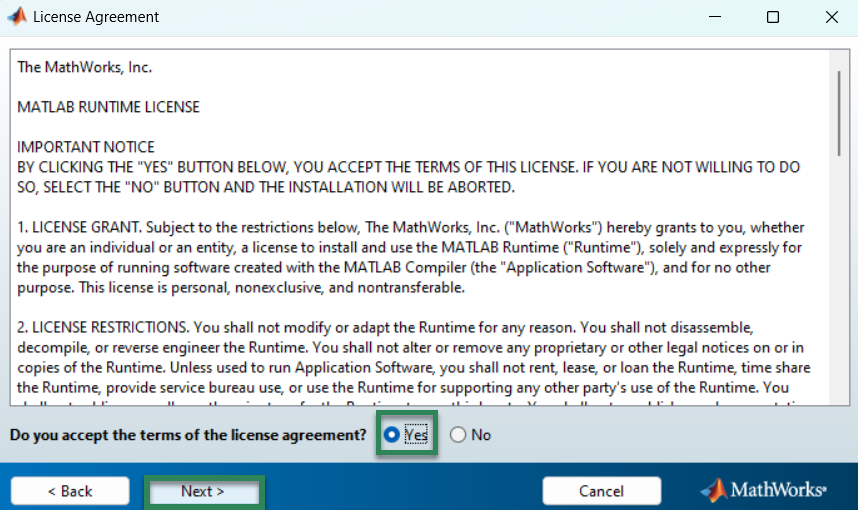
Follow the prompt to install MATLAB Runtime
Installing MATLAB Runtime is required in order to use NeuroMap
Activating your License
After NeuroMap Installation, open NeuroMap
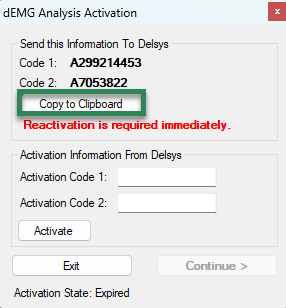
A license agreement pop-up will appear and will display two codes
Copy these codes and send them to Delsys Support
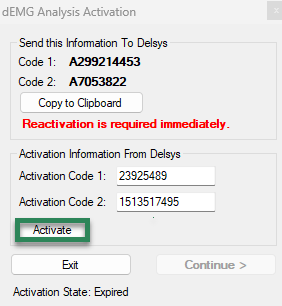
You will receive two activation keys in return. Enter these codes, then click Activate.
Information
Licensing is tied to the computer. You must repeat this process on each device where NeuroMap is installed.
Licensing is only required for NeuroMap, not NeuroMap Explorer
Step 2: Using NeuroMap to Decompose Data
Important
Not all EMG data can be decomposed into motor units. For more information on how to collect NeuroMap-compatible data (See Collecting Data for Motor Unit Decomposition)
Import your Data
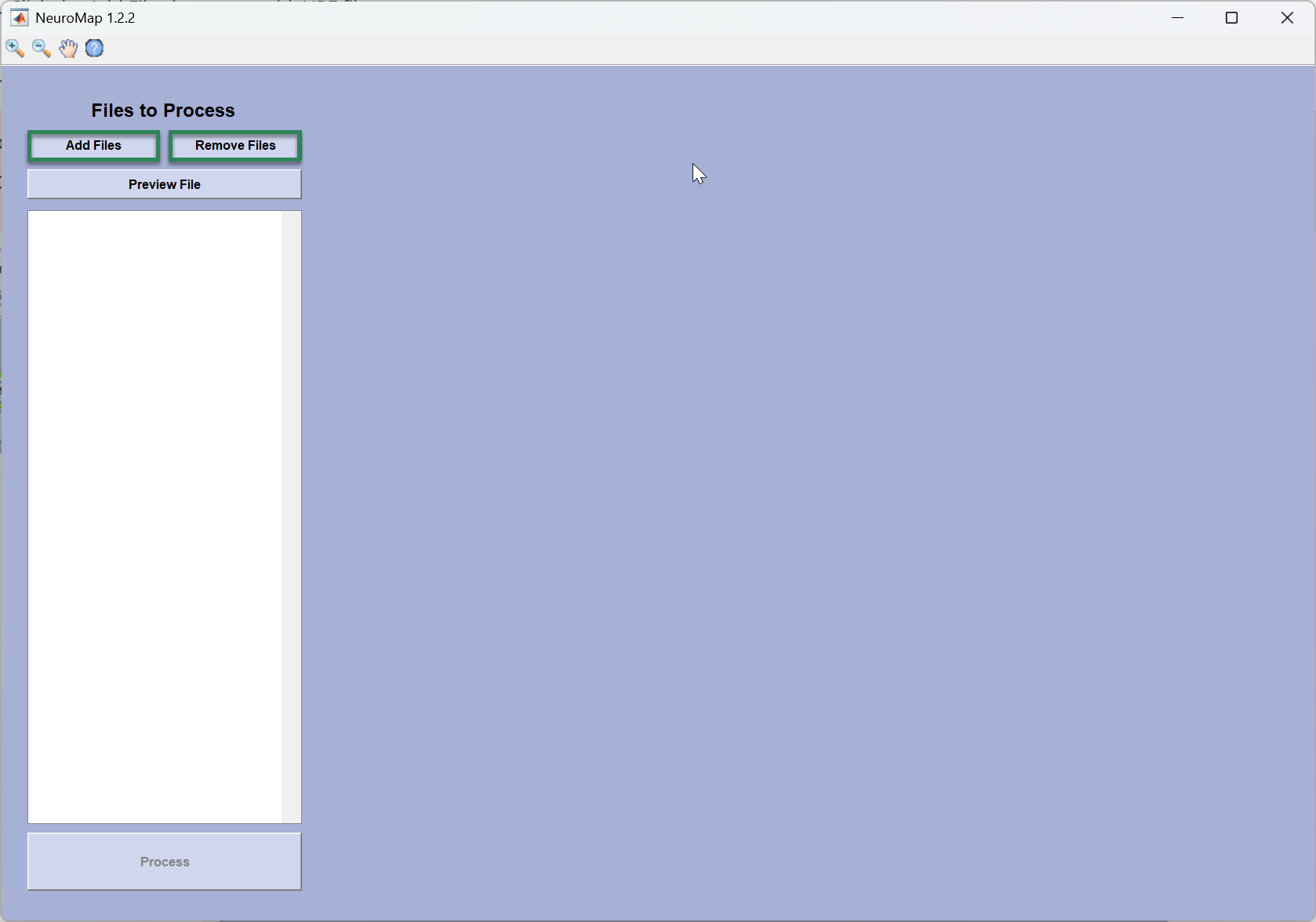
Click the Add Files button to add .HPF files
You can import multiple files at the same time by holding “Ctrl” on your keyboard and left-clicking on each file you want to import.
If desired, remove files by selecting them and clicking Remove Files.
Important
Only .HPF files can be imported into NeuroMap. You must use Trigno Discover or EMGworks to collect .HPF files.
Preview your Data
Once the files are imported, you’ll see them on the left-hand side.
Click the file you want to view, then click preview.
The sEMG signal will appear in the middle of the screen.
Decompose your Data
Click Process to decompose files.
Choose the location where you want to save your data.
It can take 1-2 minutes for the decomposition process to start after clicking Process.
Each Trigno Galileo sensor will get its own progress bar, and decomposition only happens for one sensor at a time.
Once decomposition is complete, a new .DHPF file will be created. This data can be analyzed using NeuroMap Explorer and then exported for further processing.

Information
The decomposition progress bar will not update until the file is decomposed, as long as the loading symbol on the left hand side is moving, the decomposition process is underway.
Motor unit decomposition takes approximately 1 minute per second of data for each sensor (i.e. a 30-second trial may take ~30 minutes to decompose from a single sensor).

Troubleshooting
Issue | Solution |
|---|---|
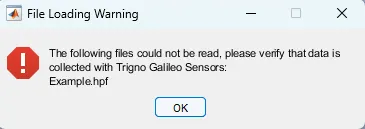
“The following files could not be read, please verify that data is collected with Trigno Galileo Sensors”
| Ensure that you are collecting NeuroMap-compatible data (See Collecting Data for Motor Unit Decomposition). |
No motor units are detected during decomposition. | Focus on collecting high-quality data by performing proper skin preparation and sensor placement (See Collecting Data for Motor Unit Decomposition). Data collection should be performed for at least 30 seconds for the best results. |
Decomposition is taking too long. | We recommend a maximum trial length of 5 minutes to avoid extended decomposition times. |
DOC-672-1-0