Overview
This guide walks you through how to review, manage, and export trial data within Trigno Discover 2.0. You will learn how to access recorded trials, view metadata, select multiple files, and use advanced export options to customize output formats and data segments. Additional instructions cover exporting data to different formats (either as CSV, C3D, .HPF, or .DELSYS), selecting Data Channels, syncing sampling rates, and backing up entire databases. These tools help streamline data handling and support collaboration between users and systems. For a visual walkthrough, please refer to the Trigno Discover video tutorials on Advanced Export.
Information
This article refers to Trigno Discover version 2.0.1. Please note that the user interface may vary depending on the version you have installed. You can find your current version of Trigno Discover in the top left corner of the application window.
Trigno Discover Getting Started Video Tutorial: Advanced Export
System Requirements
Material/Tool | Description |
|---|---|
Software | Trigno Discover 2.0 + |
Hardware: System | Trigno Centro; Trigno Lite; Trigno Research Base Station |
Firmware: System | Trigno Centro: 06-05-00 | 04-01 + Trigno Lite: 02-02 + Trigno Research Base Station: Digital: 2919 | 1506 | 0806 | 2008 | 0000 Analog: 2919| 1506 | 0806 | 2008| 0901 |
Hardware: Sensors | Avanti-Style Sensors |
Firmware: Sensors | Avanti-Style Sensor: 40-49 Maize Sensor: 60-29 |
Operating System | Windows 11 |
PC Specifications |
|
Step-by-Step Instructions
Step 1: Accessing Recorded Data
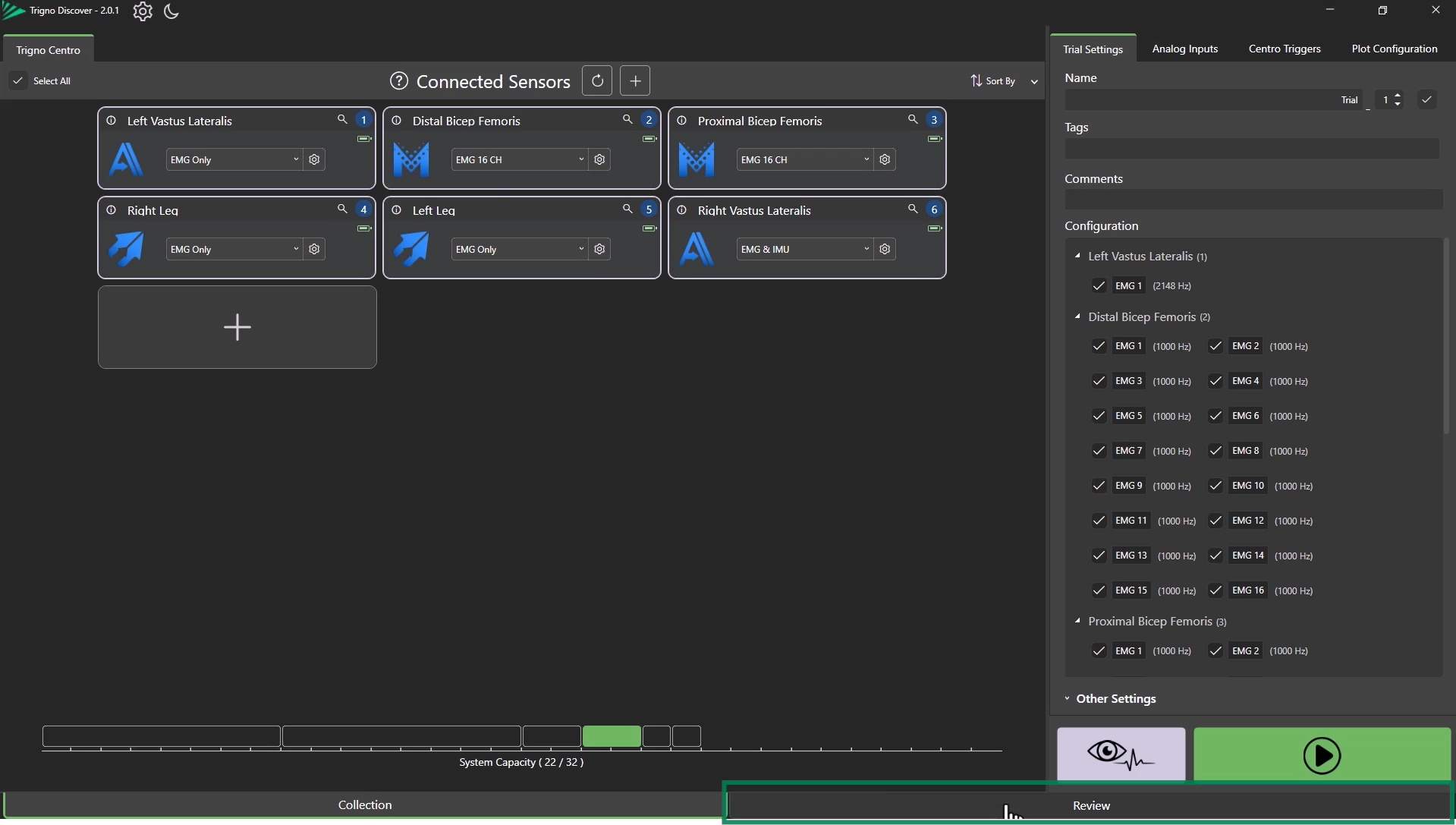
Open the Review Tab
Navigate to the Review tab in the lower right corner to access previously recorded trials.
Search and Filter Files
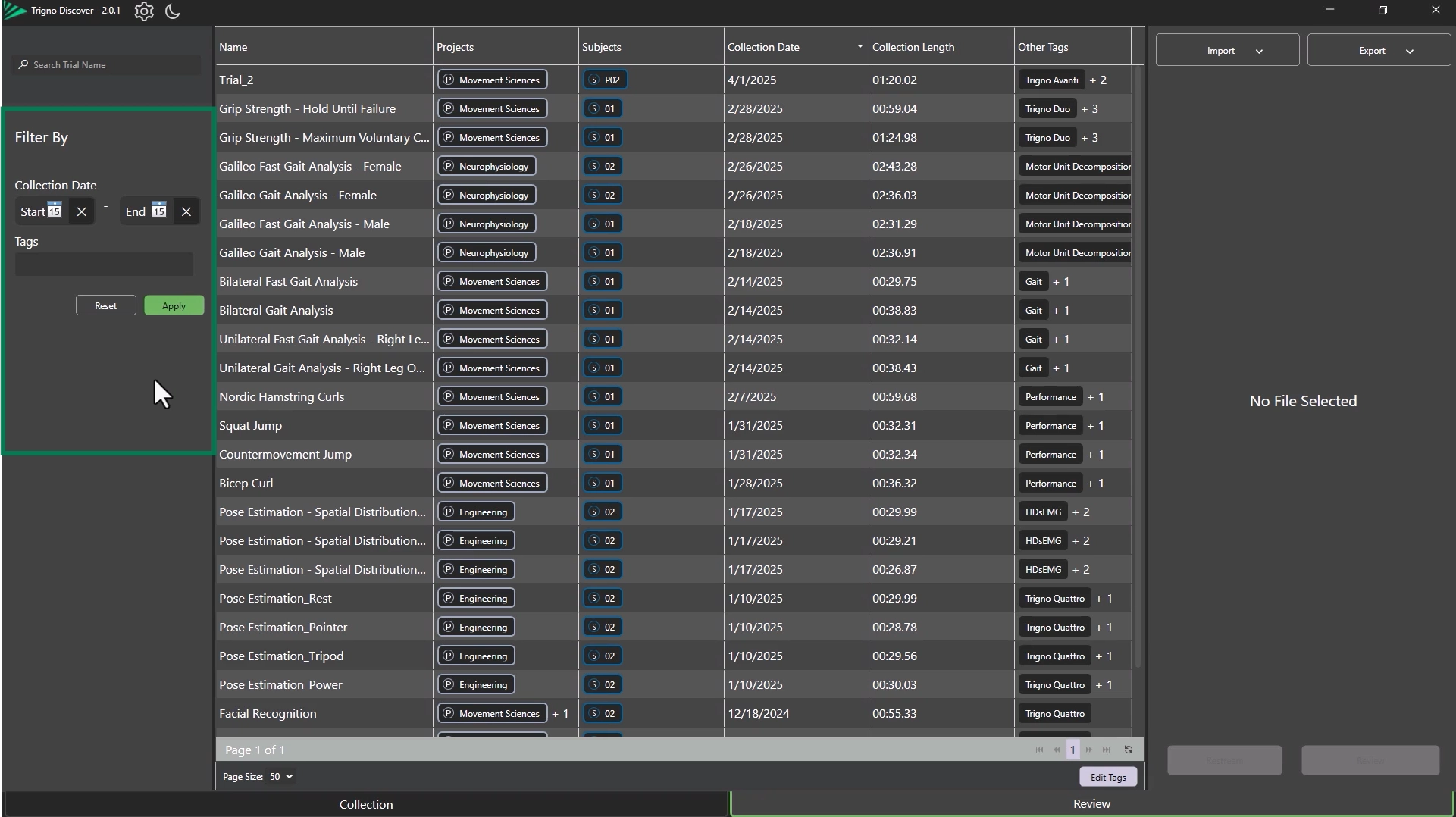
Use the database management tools to search and filter trials by tags, trial names, or dates (see Trigno Discover: Database Management).
Click “Reset” to remove all filters and show all available trials.
Trials are listed by default in descending date order (newest first).
You can reorder trials by clicking column headers:
Collection length
Trial name
Date
Important
If the specific trial data file cannot be found, please check another database.
Step 2: Viewing Trial Information
Select a Trial
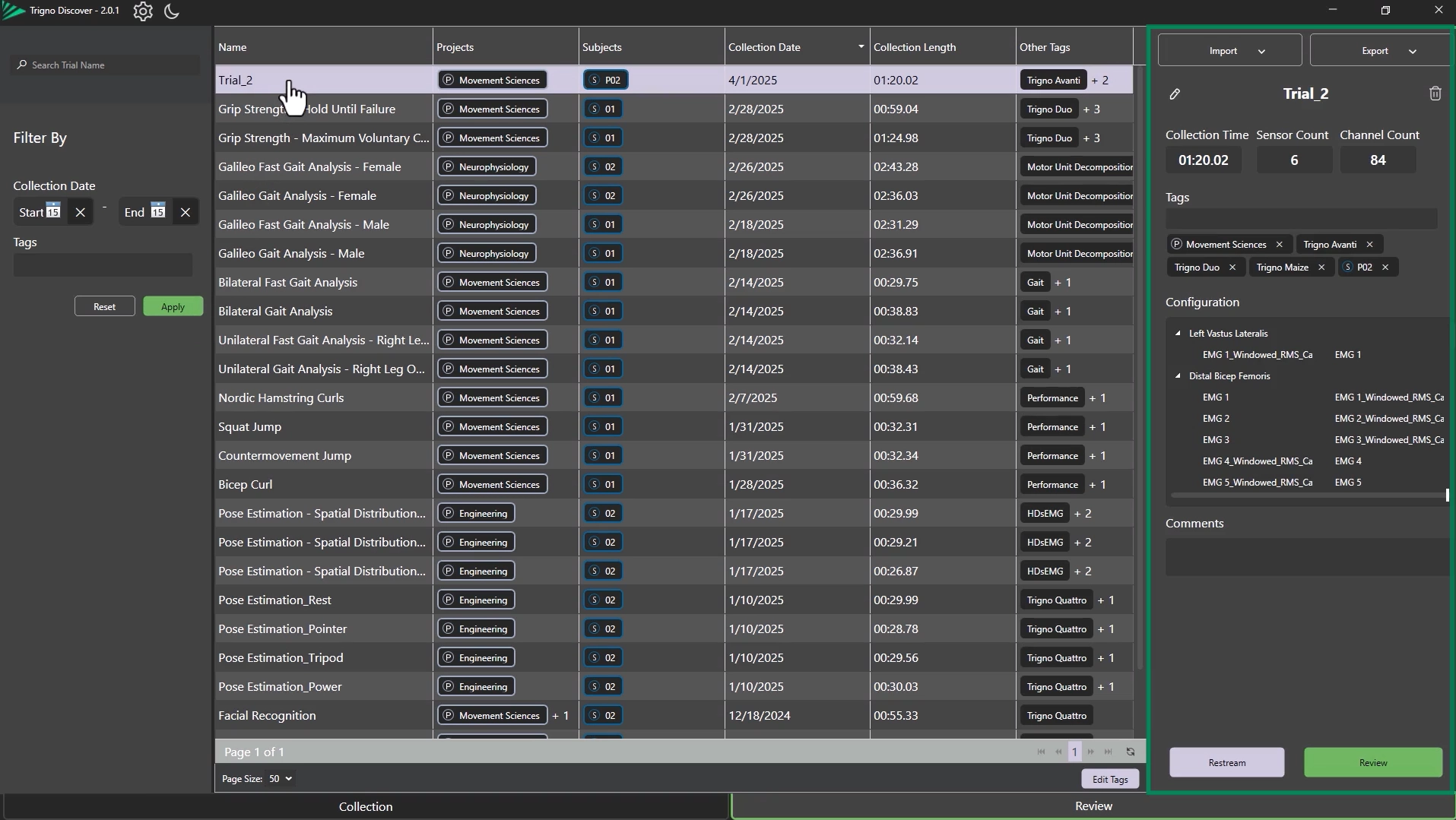
Click on a trial from the list to select it.
Review Metadata
Trial details in the Trial Information Panel will appear such as:
Collection time
Sensor count
Sensor configuration
Step 3: Selecting Multiple Trials
Select a Range of Trials
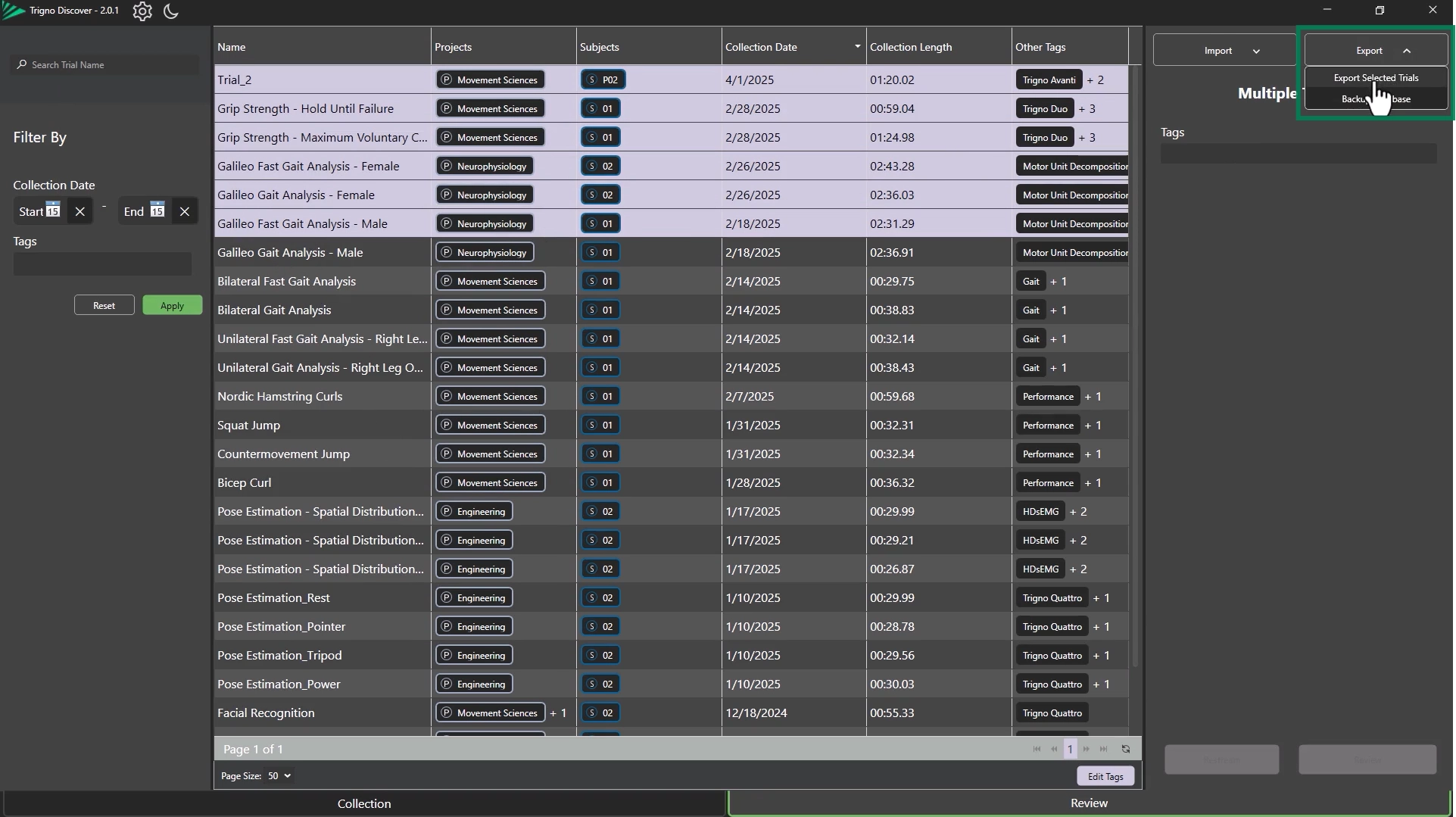
Hold Shift and left-click to select a range of consecutive trials.
Select Specific Trials
Hold Ctrl and left-click to select individual trials.
Step 4: Exporting Data
Open the Export Menu
Click the Export button at the top-right of the interface.
Choose Export Option
Select “Export Selected Trials” to proceed.
Information
Exporting data in Trigno Discover does not delete the original file. The data remains accessible and can still be exported to other file formats at any time.
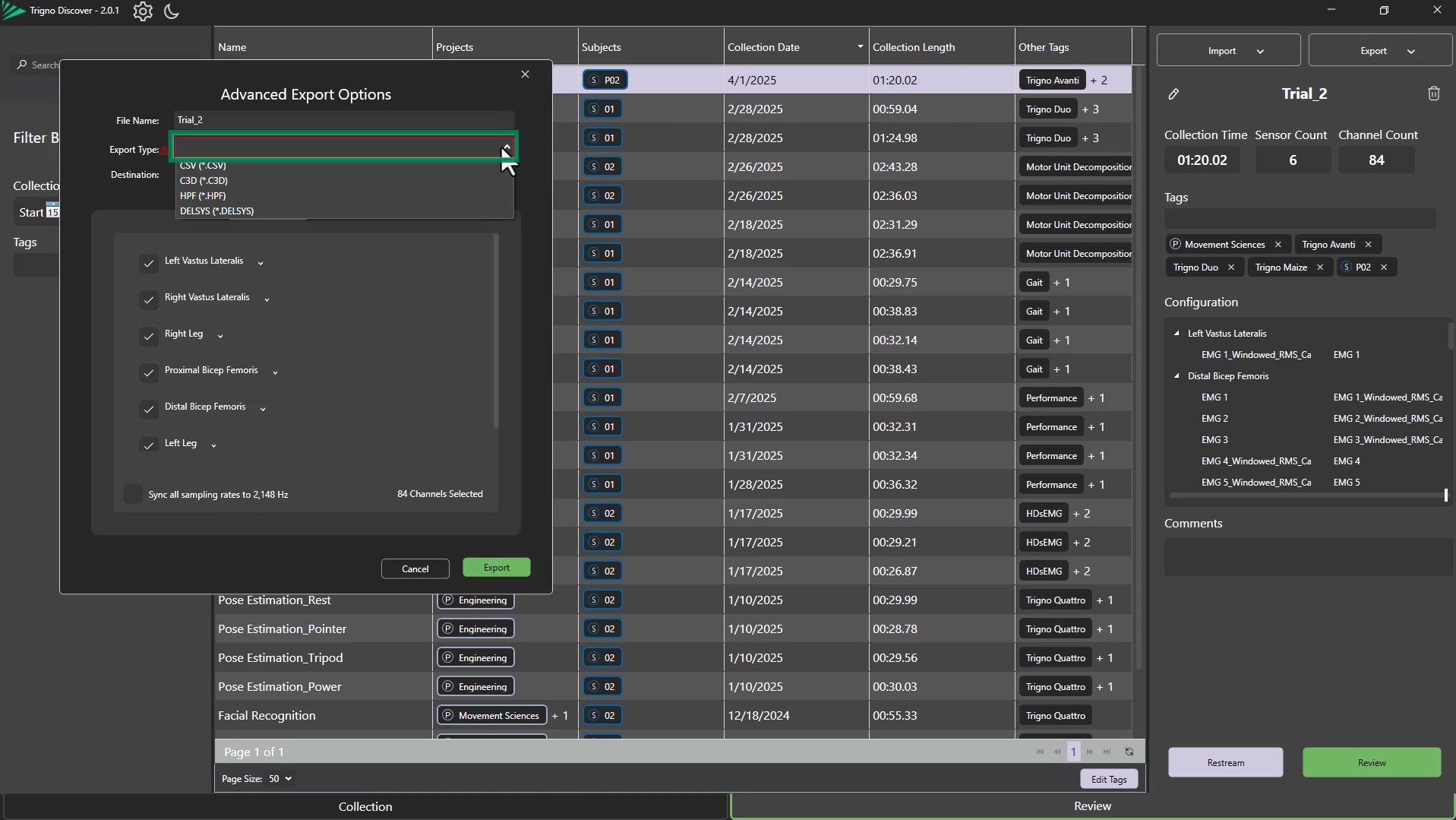
Choose Export Type
In the Advanced Export Options window, you can:
Rename the trial file
Choose the export file type (CSV, C3D, .HPF, or .DELSYS)
Select the destination folder for export
Information
When exporting, any saved event markers and metrics table data will be included in the output file; this applies only to .CSV and .Delsys file formats.
The .Delsys file format allows users to import and open data directly in Trigno Discover.
Step 5: Selecting Sensor Channels for Export
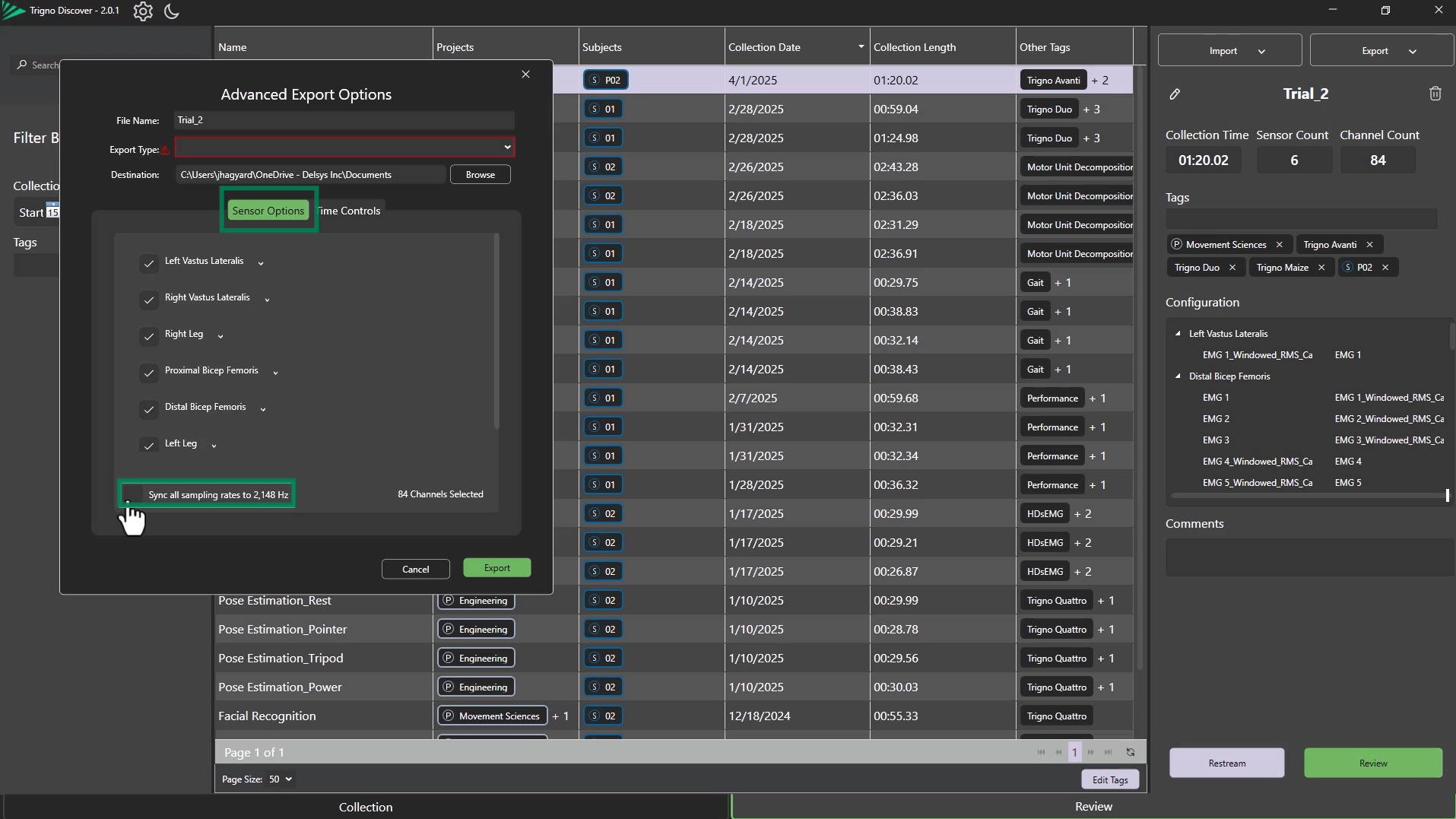
Open the Sensor Options Tab
Navigate to the Sensor Options tab in the export window.
Choose Sensors and Channels
Use the tick boxes to select or deselect sensors and individual data channels for export.
Resampling
Tick the “Sync” checkbox to resample data across channels to the highest sampling rate.
Important
This is a required step when exporting to a C3D file.
Step 6: Exporting a Data Subsegment
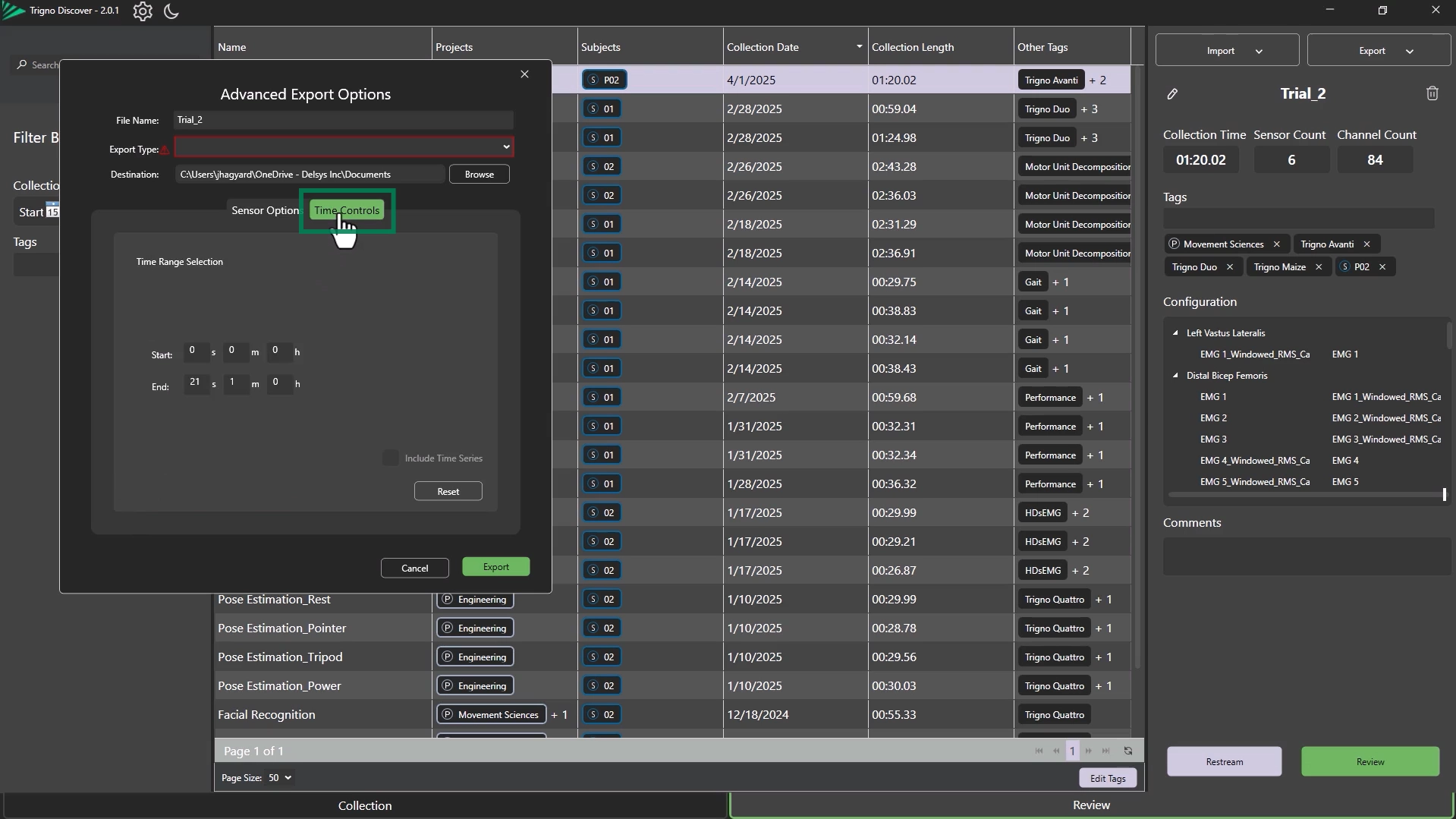
Open the Time Controls Tab
Switch to the Time Controls tab in the export window.
Select Time Range
Enter the start and end time to isolate a segment of the trial.
This segment will be exported as a separate file.
Step 7: Backing Up the Entire Database
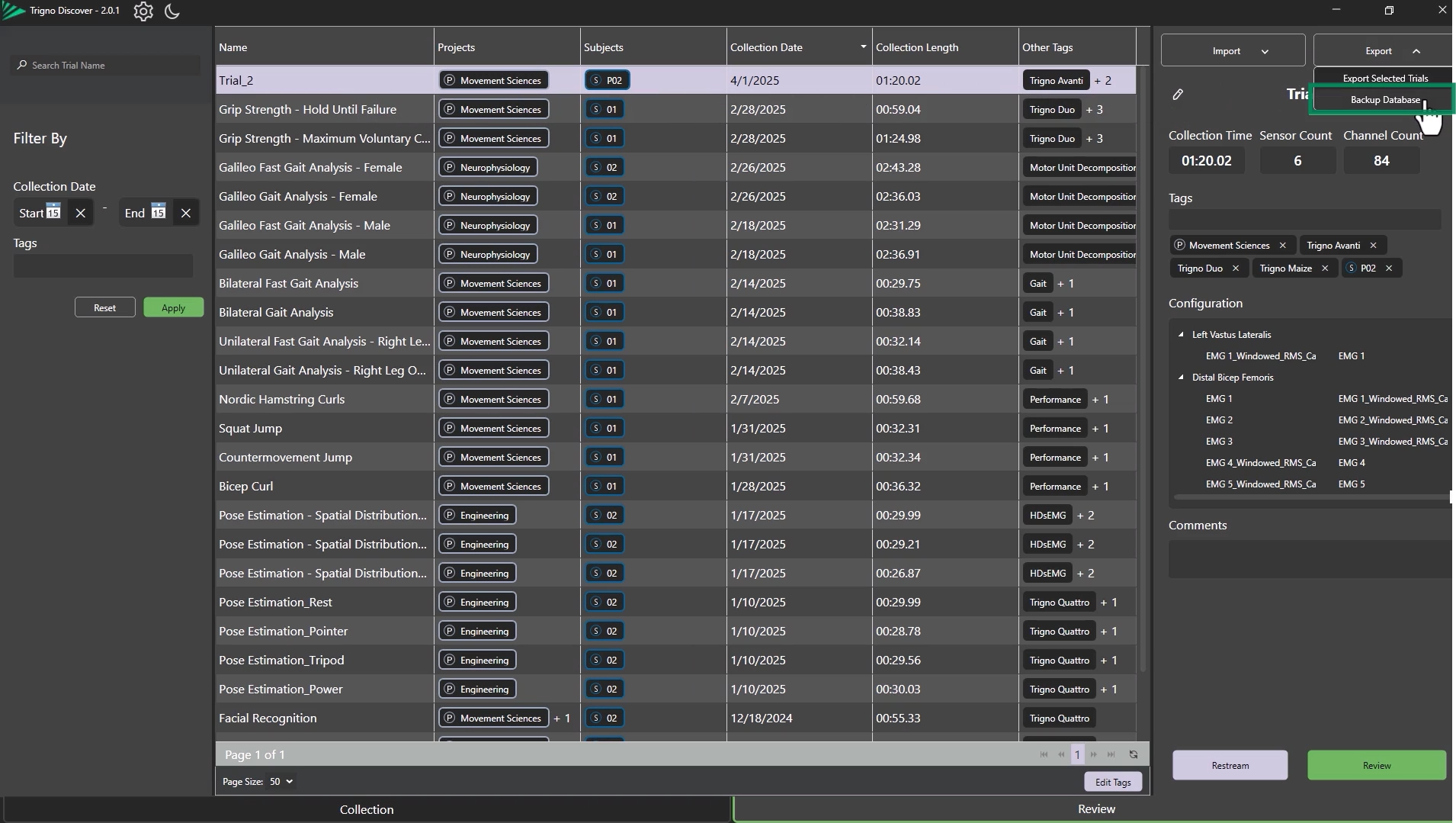
Open Export Menu
Click the Export dropdown.
Select Backup Option
Choose “Backup Database” to export all trials as a single .DELSYS file.
Share or Import
This file can be imported into another user’s Trigno Discover database.
Important
Only “.DELSYS” files can be used for database backup and import.
For more information on Trigno Discover, please refer to the other articles in the Trigno Discover Getting Started Series.
DOC-679-1-0